Quick take
We break down who this device is best for, what it measures, and how it compares in the market.
Home blood pressure monitoring has become an essential part of managing cardiovascular health, especially as hypertension remains a leading risk factor for heart disease and stroke (NHLBI). Bluetooth-enabled blood pressure monitors now offer a seamless way to track your readings, spot trends, and even share data with your healthcare provider. Whether your doctor has asked you to monitor at home or you want to take charge of your health, knowing how to use a blood pressure monitor with Bluetooth app integration is invaluable.
Key Takeaways
- Bluetooth BP monitors simplify home blood pressure tracking and data sharing.
- Correct pairing and setup are crucial for accurate, seamless data syncing.
- Regular maintenance and secure app usage help protect your health data.
- Troubleshooting common connectivity issues ensures long-term device reliability.
Who This Is For
If you want a convenient, accurate way to monitor your blood pressure at home—and value the ability to review trends or share reports—Bluetooth-enabled monitors are designed for you. This guide is ideal for anyone new to BP monitoring, those upgrading from a manual device, or caregivers supporting loved ones. If you’re unsure, choose Bluetooth if you want automated tracking, easy report sharing, or simply less manual logging.
Understanding Bluetooth-Enabled Blood Pressure Monitors
Why Choose a Bluetooth Blood Pressure Monitor for Home Use?
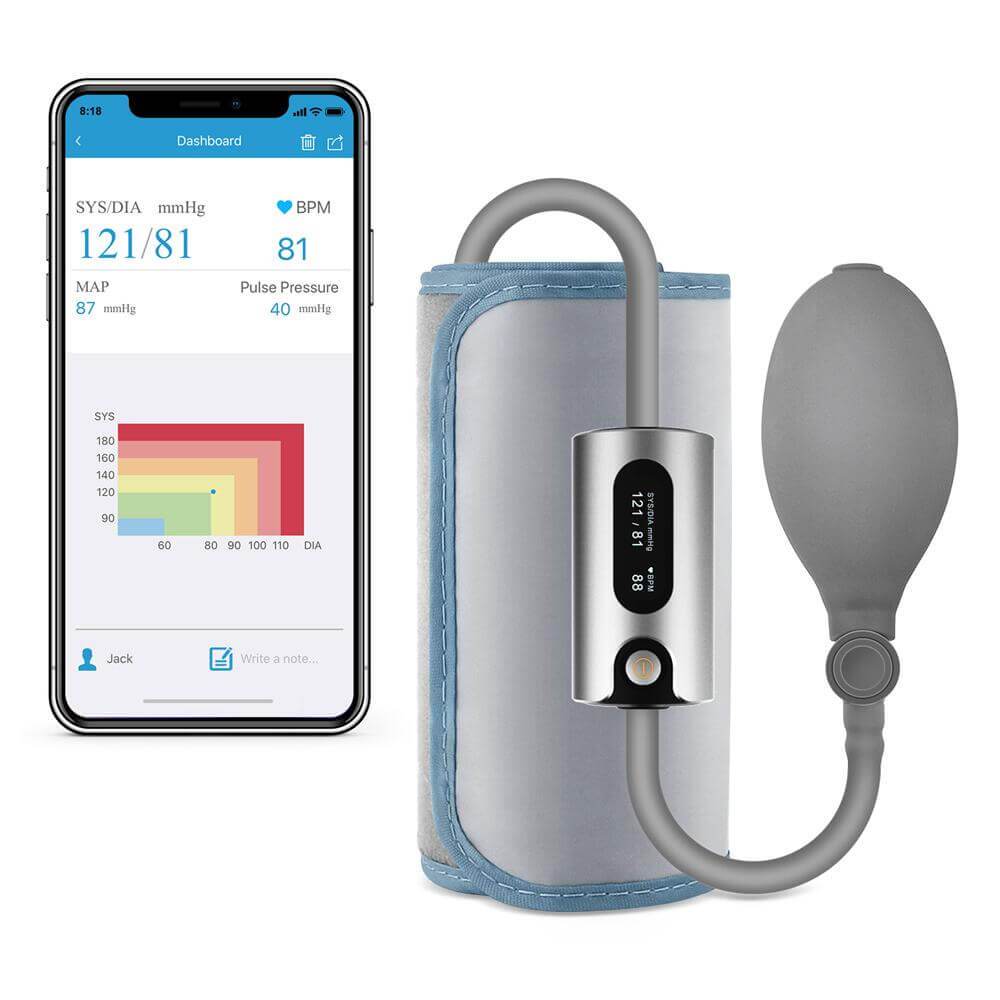
Bluetooth blood pressure monitors have transformed at-home health tracking. Devices like the AirBP Plus Blood Pressure Monitor and Smart Blood Pressure Monitor automatically sync readings to your phone, so you don’t have to jot numbers down or risk input errors. This automation makes it easier to spot patterns and manage hypertension with your healthcare team’s guidance.
What You Need: Device, App, and Compatibility Checklist
- A Bluetooth-enabled BP monitor (e.g., Wellue AirBP Plus, Bluetooth Upper Arm, Smart BP Monitor)
- The official companion app downloaded to your smartphone or tablet
- Charged batteries or a full charge on your device
- Compatible operating system (iOS or Android, check app requirements)
Benefits of Automatic Data Syncing and Remote Monitoring
With automatic syncing, your readings are instantly stored and organized. No more scribbled notes or lost records. Many apps visualize trends, calculate averages, and allow you to export or email reports directly to your provider—making it easier to adjust your treatment plan when necessary.
Step-by-Step: Setting Up Your BP Monitor with App
Unboxing and Charging Your Blood Pressure Monitor
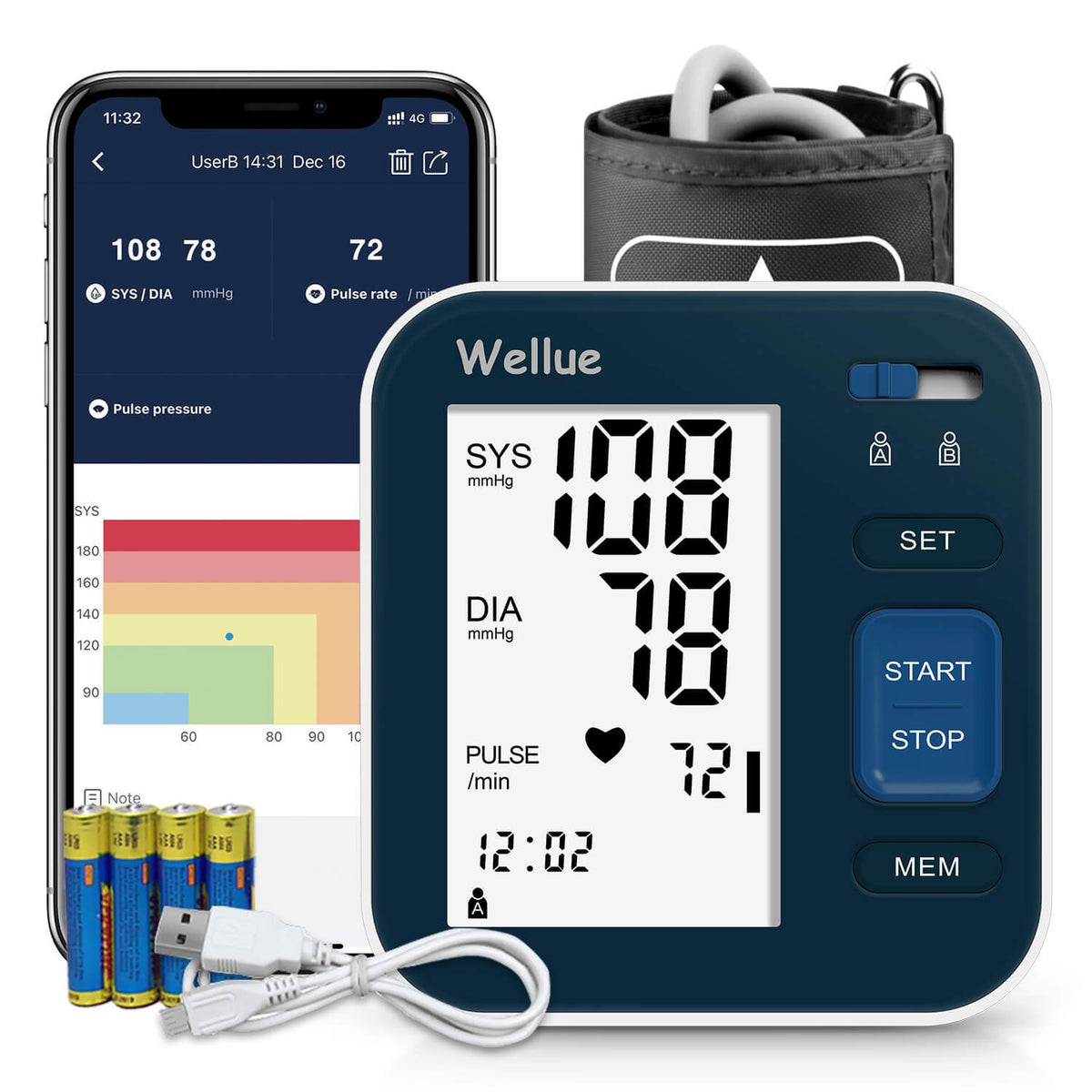
Start by unpacking your monitor and ensuring all components are present: the main device, cuff, and charging cable (if rechargeable). Fully charge the monitor or insert fresh batteries to avoid interruptions during setup.
Downloading the Right App and Account Setup
Scan the QR code on your device or search for the manufacturer’s app in the App Store or Google Play. Create an account if prompted; this is needed to save readings and enable syncing across devices.
Pairing Your Blood Pressure Monitor via Bluetooth
- Enable Bluetooth on your phone/tablet.
- Open the app and start the pairing process (usually under “Add Device” or similar).
- Turn on your BP monitor and ensure it’s in Bluetooth pairing mode (check the manual—often this is automatic on power-up).
- Select your device from the list in the app. Confirm pairing if prompted. A successful connection is often confirmed by a beep, vibration, or visual indicator.
These steps apply to most Wellue models and other leading brands. If you’re setting up BP monitor with app for the first time, allow notifications—this lets the app alert you about successful syncs or firmware updates.
First-Time Measurement: Getting Accurate Results
- Relax quietly for 5 minutes before measuring.
- Wrap the cuff snugly around your upper arm (make sure it’s at heart level).
- Sit upright with feet flat on the floor, back supported.
- Press the Start button on the device or use the app to trigger the measurement.
- Stay still and silent until the reading completes.
The reading will display on your monitor and sync to the app if connected. For best results, measure at the same time daily and avoid caffeine or exercise 30 minutes prior.
Using the App: Recording and Reviewing Blood Pressure Data
How to Start a Measurement from the App or Device
Many smart monitors let you begin a reading directly from the app (especially useful if you want to annotate the reading). Alternatively, use the device’s start button and sync afterward. The Smart Blood Pressure Monitor makes it particularly easy—just wrap, press, and measure.
Syncing Readings: Manual vs. Automatic Transfer
Some devices sync readings in real-time; others require you to open the app with Bluetooth enabled. If you notice a delay, simply refresh the app or press the sync button. Always check that both the device and phone are within Bluetooth range (about 10 feet or 3 meters).
Viewing Trends, Averages, and Historical Results
Your app should display a dashboard of your last readings, trends over days or weeks, and calculated averages. Many models store up to 100 readings on the device, letting you review progress even away from your phone. Use these features to monitor how lifestyle changes or medications affect your BP over time.
Sharing Reports with Your Healthcare Provider
Most apps let you export your data as a PDF or CSV file. Tap “Share” or “Export” and choose email or cloud storage. This helps keep your care team updated without bringing the monitor to every appointment.
Bluetooth Blood Pressure Monitor Instructions: Troubleshooting & Tips
Common Pairing Problems and Quick Fixes
- Ensure Bluetooth is enabled on your phone and the monitor is charged/on.
- Restart both devices if pairing fails.
- Check for app or firmware updates.
- Remove ("forget") the device in your phone’s Bluetooth settings and re-pair if issues persist.
What to Do if Data Won’t Sync
If your readings aren’t appearing in the app, confirm the connection is active, open the app, and place the monitor nearby. Some apps require you to sync manually. If you’ve tried these steps and still have trouble, consult the app’s FAQ or the support section.
Resetting the Device or App Connection
Most monitors have a reset button or a process for restoring factory settings. Check the user manual for exact steps. Uninstalling and reinstalling the app can also resolve stubborn Bluetooth or data transfer issues.
Ensuring Ongoing Accuracy and Reliable Performance
Check the cuff for wear and proper fit every few months. Keep your device firmware and app up to date to benefit from stability improvements and new features.
Device Maintenance and Data Security
Keeping Your Monitor Clean and Functional
Wipe the cuff and device gently with a soft, slightly damp cloth after use. Avoid harsh cleaners or submerging any part. Store the monitor in a dry place away from direct sunlight.
App Updates and Privacy Considerations
Always use the latest version of your BP app for the best security features. Read privacy policies to understand how your health data is stored and shared. Reputable apps encrypt your data and do not share it without your explicit consent (FDA guidance).
How to Safely Store and Back Up Your BP Data
Enable cloud backup if available, or regularly export your results and save them securely. This ensures your information is retrievable even if you change devices.
When to Seek Support: Recognizing Device or App Malfunctions
If your monitor consistently provides error messages, fails to inflate, or the app crashes repeatedly, contact customer support. Persistent issues may indicate a hardware fault or the need for a replacement.
Summary: Making the Most of Your Bluetooth BP Monitor
Learning how to use a blood pressure monitor with Bluetooth app integration enables more reliable, stress-free home health management. Proper setup, regular syncing, and simple troubleshooting keep your data accurate and accessible. For most, the AirBP Plus Blood Pressure Monitor is a dependable all-rounder for daily BP tracking. If you want a sleeker design or more portable option, the Smart Blood Pressure Monitor is a worthy alternative.
Product Spotlights
AirBP Plus Blood Pressure Monitor with Screen
The AirBP Plus is best for users who want a straightforward, reliable way to track blood pressure trends at home. Its large screen and averaged measurement features make it easy to interpret results, especially for older adults or those new to home monitoring. One limitation: as with any cuff-based device, proper fit and positioning are essential for accuracy. In real-world use, it’s a strong daily companion for anyone managing hypertension or monitoring BP for health reasons.
Smart Blood Pressure Monitor
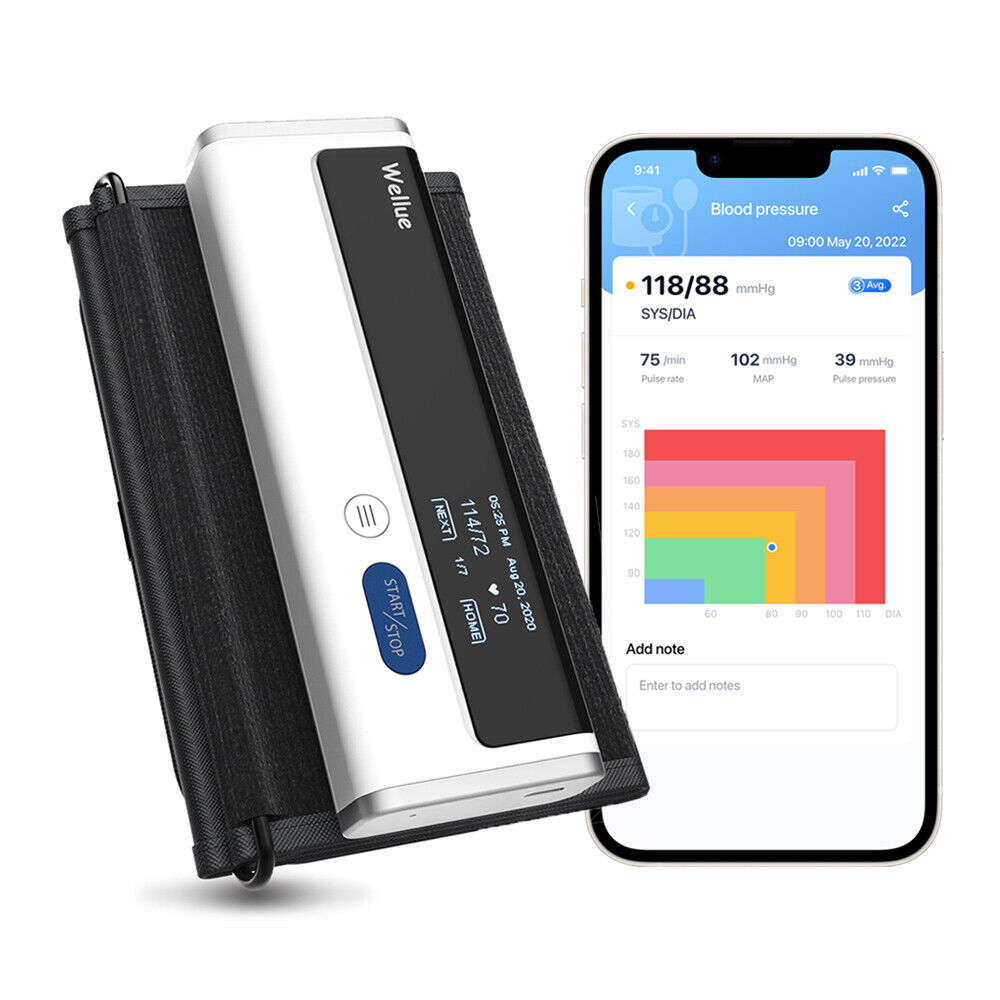
This model is ideal if you prioritize portability and a one-piece design. It’s easy to wrap, measure, and review results on the built-in OLED screen or via the app. While its compact design is convenient, users with larger arms should double-check the cuff size before purchase. For travelers or anyone who wants to keep a BP monitor in a work bag, it’s an excellent choice.
FAQs
- How do I know if my blood pressure monitor is paired correctly with the app?
- You’ll see a confirmation in the app (often a checkmark, connection symbol, or device name listed as "Connected"). Some monitors beep or display a Bluetooth icon when synced. If you can start a measurement from the app or see new readings appear, you’re properly paired.
- What should I do if my readings aren’t syncing to my phone?
- First, confirm Bluetooth is enabled and your device is close to your phone. Try refreshing or reopening the app. If syncing still fails, restart both devices and check for app or firmware updates.
- Is my health data secure when using a Bluetooth blood pressure monitor app?
- Reputable apps encrypt your data and require your consent to share information. Always use official apps and keep them updated for the most robust security features.
- How often should I clean my blood pressure monitor?
- Wipe the cuff and device after each use, and clean more thoroughly (according to manufacturer instructions) once a week or if visibly soiled. Never immerse the monitor in water.
- Can I share my blood pressure reports with my doctor directly from the app?
- Most companion apps allow you to export readings as a PDF or CSV file. You can email these reports or upload them to your healthcare provider’s patient portal as needed.